> For the complete documentation index, see [llms.txt](https://docs.searchpie.io/llms.txt). Markdown versions of documentation pages are available by appending `.md` to page URLs; this page is available as [Markdown](https://docs.searchpie.io/app-features/on-page-and-content/schema-and-snippets.md).
# Schema & Snippets
**Schema & Snippets** refers to the overall concept of using structured data markup (like **JSON-LD**) to create rich snippets in search results.
In short, **Google Structured Data (JSON-LD)** is a standardized format that helps structure information about a page and makes it machine-readable data. In other words, it classifies the page content in a unified way for search engines like Google to understand.
This helps to create a more organized and better web overall enhancing the page ranking. For example, on a recipe page, the **JSON-LD** format helps Google understand what are the ingredients, the cooking time and temperature, the calories, and so on.

You can refer to [this article](https://moz.com/blog/json-ld-for-beginners) for more in-depth knowledge about JSON-LD.
{% hint style="success" %}
***"Do I really need Rich Snippets?"***
According to Neil Patel (an experienced SEO expert), having a rich snippet will help your store stand out against your competitors on result pages. It can increase click-through rates (CTR) by 677% and drive 20-40% more traffic than product links without them.
{% endhint %}
Below is detailed information on each type of rich snippet that Search Pie provides. To enable them, firstly navigate to **Schema & Snippets**:
### 1. Breadcrumb
{% hint style="success" %}
**Breadcrumb** is available for our users of all plans :free:
{% endhint %}
A **breadcrumb** trail on a page indicates the page's position within a navigational hierarchy on web pages, and it will help users keep track of and explore a site effectively. Learn more [here](https://developers.google.com/search/docs/advanced/structured-data/breadcrumb).

***How to enable Breadcrumb?***
In **Breadcrumb** menu, toggle the button on to enable it. Next, *y*ou can view the **Sample** of how it will display. After that, you can click **Save** to complete and click **Test on Google** to check it again on **Google's Rich Results Test**.
### 2. Product Snippet
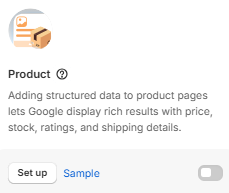
**SearchPie** will add a markup to your **Product pages** so Google can provide detailed product information as a rich result in Google Search, including Availability, a product Image, Price, and Review Ratings.
Let's check out this example to get a more specific view of rich snippets of product pages.
Product snippet.
***How to enable Product snippet?***
In the Product menu, click **Set up** first and complete all the required information. Once finished, you can click **Save** and then toggle the button on to save the information and enable the feature.
After clicking the Set up button, complete the information field to display product information in Google search results. In **Review Snippet Source**, you can choose to show reviews from a specific **Review app**.
After that, you can click **Save** to complete and click **Test on Google** to check it again on **Google's Rich Results Test**.
Product Schema Set-up
Choose a specific Review app if you want.
You can click **Auto-fill from Shopify**, then approve the permission request. The app will automatically sync your store information from Shopify and populate the relevant Product Schema fields.
### 3. Blog Post Snippet
SearchPie will add a markup to your Blog Post pages so Google can provide detailed collection information as a rich result in Google Search.

***How to enable Product snippet?***
In **Blog Post** menu, toggle the button on to enable it. Next, you can view the **Sample** of how it will display. After that, you can click **Save** to complete and click **Test on Google** to check it again on **Google's Rich Results Test**.
### 4. Store Profile
{% hint style="success" %}
**Store Profile** is available for our users of all plans :free:
{% endhint %}
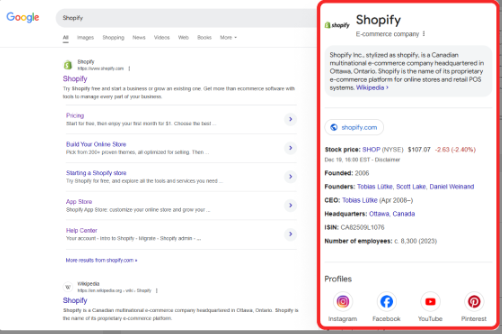
**SearchPie** will add a markup to your home pages so Google can provide detailed store information as a rich result in Google Search. Store Profile snippets help to increase the chance of having Google display a knowledge panel for your site in the search results
***Note:** Reference page means the URL of a reference web page that unambiguously indicates the edition. For example, a Wikipedia page for this specific edition.*
Store Profile snippet.
***How to enable Store Profile snippet?***
In the **Store Profile** menu, click **Set up** first and complete all the required information. Then, turn on the toggle and click **Save** to save your settings and enable the feature.
Next, complete the information field to display product information in Google search results. This includes **General information**, **Store logo**, and **Social network profiles**. After that, you can click **Save** to complete.
Set up Store Profile
### 5. Local Business
With **Local Business** structured data, **SearchPie** will help you tell Google about your business hours, different departments within a business, reviews for your business, and more.
***How to enable Local Business?***
In the **Local business** menu, click **Set up** first and complete all the required information. Then, turn on the toggle and click **Save** to save your settings and enable the feature.
Next, complete the information field to display product information in Google search results. This includes **General information**, **Opening hours**, and **Social network profiles**. For **Integrate Google Map**, feel free to click **Contact us** if you want to display a map on your site. After that, click **Save** to complete.
Set up Local Business.
### 6. Loyalty
The **Loyalty Schema** helps Shopify merchants who run customer loyalty programs by offering members special benefits, such as discounted prices and reward points.\
\
When a user adds the **MemberProgram** to their website, Google Search can use this information to display loyalty benefits alongside the user’s products on the SERP.\
\
The loyalty programs that a user offers for their business can be specified using the **MemberProgram** structured data type, nested under the **Organization** structured data type.
{% hint style="success" %}
Information about loyalty programs is available in Google Search results in **Australia, Brazil, Canada, France, Germany, Mexico, the United Kingdom, and the United States**, on both desktop and mobile devices.\
\
Within the app, this feature is only available for the **Enterprise** and **Plus** plans.
{% endhint %}
***How to enable Loyalty?***
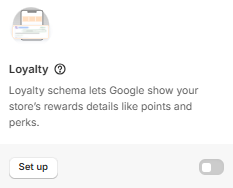
In the **Loyalty** menu, click **Set up** first and complete all the required information. Once finished, you can click **Save** and then toggle the button on to save the information and enable the feature.
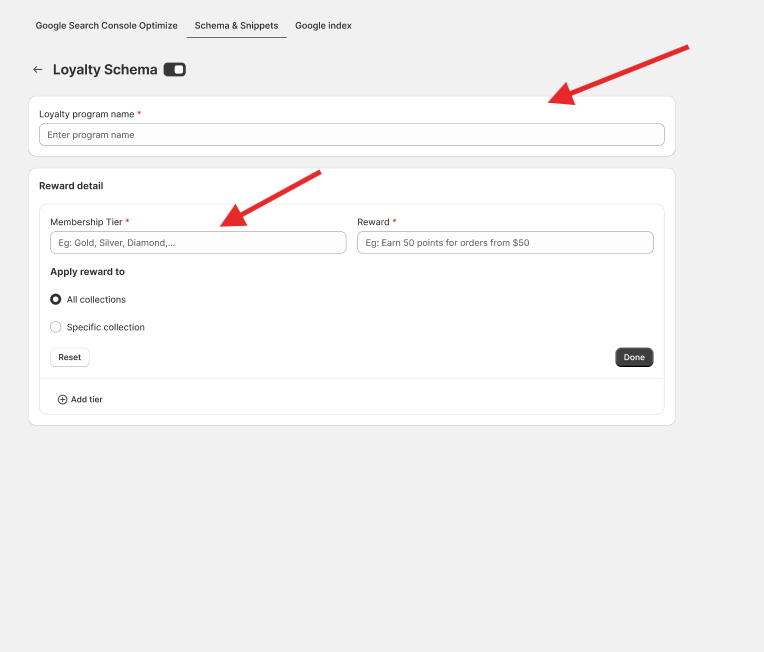
After the user clicks **Set Up**, the **Set Up** page opens:
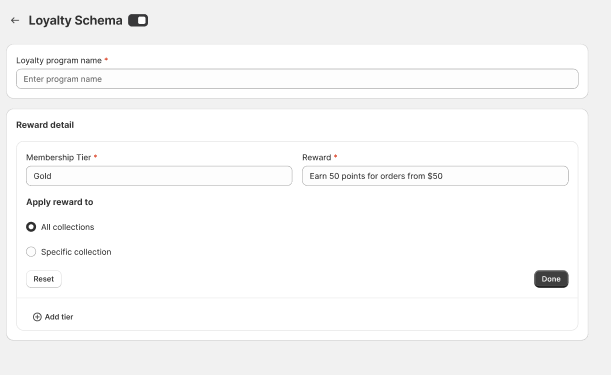
**Step 1:** Enter the **Loyalty Program Name** and **Membership Tier** → type them into the respective boxes.
**Step 2:** Then enter the **offer** or **reward** of the Loyalty Program into the box below.
**Step 3:** After selecting and entering information for the reward, the user must choose the **Collection** to which this schema will apply. The user can select **All Collections** or **Specific Collections**.
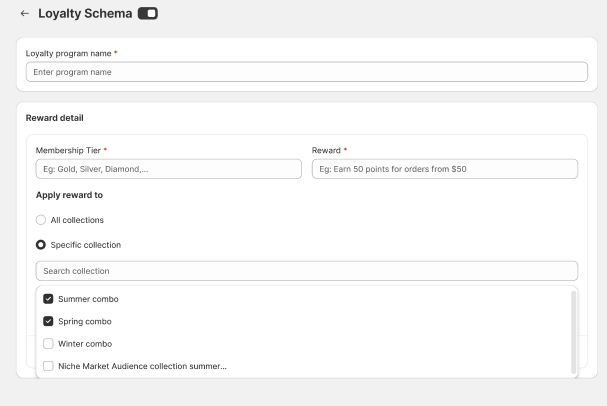
When the user clicks **Specific Collections**, a search bar appears to search for collections/products, and a list is displayed for the user to choose from.
**Specific Collection:**
**All Collection**
**Step 4:** After completing the information for a membership tier, click **Done**. If the user is not satisfied, they can click **Reset** to clear all data for that membership tier.
**Note:** The screen will display a warning if any required information is missing.
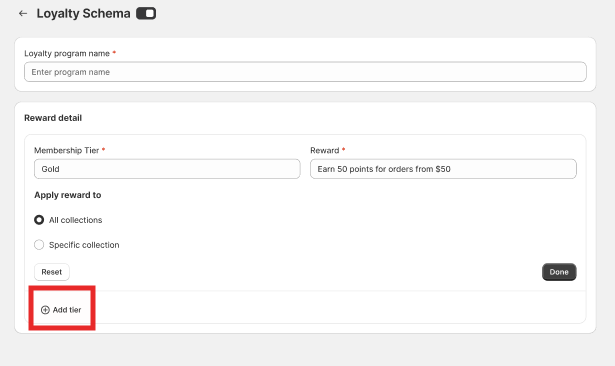
**Step 5:** After creating a reward for one tier of the Loyalty Program, the user clicks **Add Tier** to continue adding additional tiers for the program.
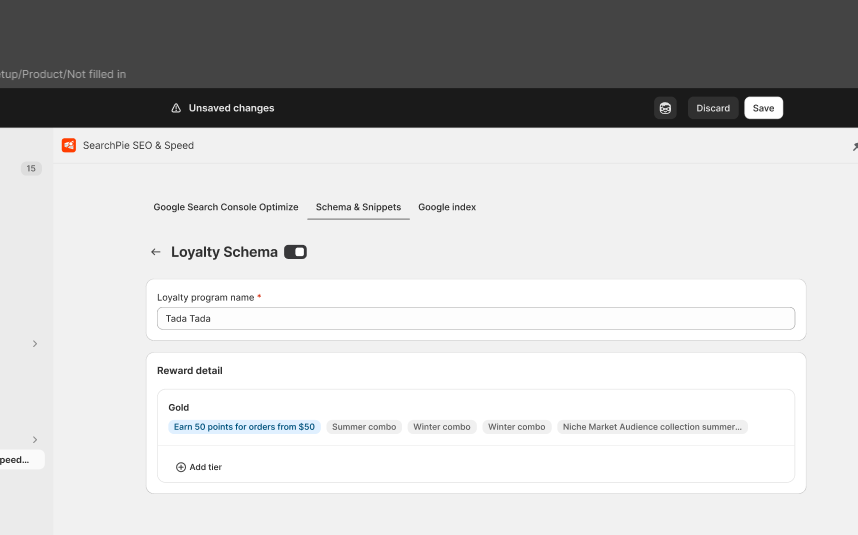
**Note:** Customers can only set up **one Loyalty Program**, but it can have multiple tiers. Once the Loyalty Program name is fully set up, the interface will appear as follows:
After the customer has finished entering the **Loyalty Program name** or **tier**, the **Save** button appears. Please remember to toggle on the button to enable the feature.
### :question: FAQ About JSON-LD
{% hint style="info" %}
#### It says you have enabled JSON LD on my store but what does this mean? What has been done to my store?
{% endhint %}
JSON-LD is an important element that helps structure the data on your site. This will help Search Engines to disambiguate elements and establish facts surrounding entities, which is then associated with creating a more organized, better web overall. JSON-LD has been added to the `` section of the HTML document so that the Google search engines can read them. Google and some other search engine use this as a factor to rank in their search results.
{% hint style="info" %}
**How to check if my pages support rich results?**
{% endhint %}
Once JSON-LD has been added, you can always go to this [Testing tool](https://search.google.com/test/rich-results) from Google to check if JSON-LD is really integrated into each page or product of your store. Just paste the URL you want to check onto the box and click to see the result.
For more specific information, you can directly check it on your page code. Please go to a page you want to check ->Right click -> View page source -> Ctrl + F -> Search for "json", you will see the added code like this.

It is noted here that the code of the FAQ schema will be applied to the specific page that you choose and fill in on the app. Therefore, if you want to check the FAQ schema code, please go to that page -> Right-click -> View page source -> Ctrl + F -> Search for "faq", you will see the added code like this.

{% hint style="info" %}
#### Will JSON-LD alter my website at all?
{% endhint %}
Basically, JSON-LD does not change anything about your storefront but just helps a lot for SEO. Please refer to the post for more details:
{% hint style="info" %}
**Will all information I filled in on the app will be shown on Google?**
{% endhint %}
Yes, when Google crawls your web page, it will crawl all the information you set up. If your store already had JSON-LD before, or there is more than one JSON-LD version on the site, Google will choose a more complete version to display, so you don't have to worry about conflicting issues. It's the reason why it's highly recommended to add our JSON-LD because it's the most complete and newly-updated version.
{% hint style="info" %}
**How long will it take for Rich Snippets to show in search engine results?**
{% endhint %}
Normally, it takes about 4 - 8 weeks for Google to show up your rich snippets on search result pages, sometimes up to 11 weeks. There is no exact time frame in that case.
{% hint style="info" %}
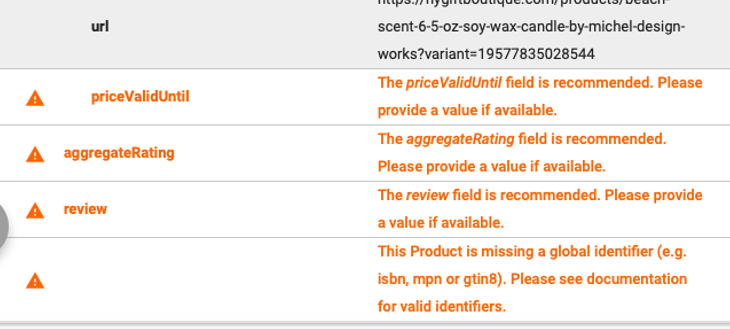
#### Why do I keep seeing warnings in the JSON-LD test?
{% endhint %}
There are warnings because you are missing some fields (for example, here Review field is lacking) so you will be recommended to add it. Read more details here:
{% hint style="info" %}
#### If I cancel this app, will JSON LD remain enabled on the store?
{% endhint %}
It will stay with you until you ask it to be removed.